DAWesome manual
How DAWesome works, step by step. What each program carries is on How it works, and the app itself is on the DAWesome page.
Install DAWesome
Check each copy in your program before you rely on it.
Choose the installer for your Mac. If you are not sure, open the Apple menu, choose About This Mac and look for Chip: an Apple chip means Apple silicon, an Intel chip means Intel.
- Apple silicon: DAWesome-1.0.0-arm64.pkg (3.9 MB)
- Intel: DAWesome-1.0.0-x86_64.pkg (4.1 MB)
- Choose the installer for your Mac.
- Download it.
- Double-click the installer and follow the pages. DAWesome is installed in your Applications folder.
- Open DAWesome from Applications. If macOS asks you to confirm that you want to open it, choose Open.
A Mac running macOS 12.4 or later. Logic Pro, Pro Tools, Ableton Live or REAPER is needed only to open the copies DAWesome makes.
What DAWesome never changes
It writes a new copy in the folder you choose. Your original session is never edited.
DAWesome keeps each audio file's own sample rate. One REAPER project cannot mix sample rates, so a session whose audio uses more than one rate is refused for REAPER with a plain message. Some sessions are refused before anything is written, for example older Logic Pro projects, tempos with decimals, or two audio files with the same name.
It never removes your source projects or its own folders, and sends nothing over the network.
Choose a project
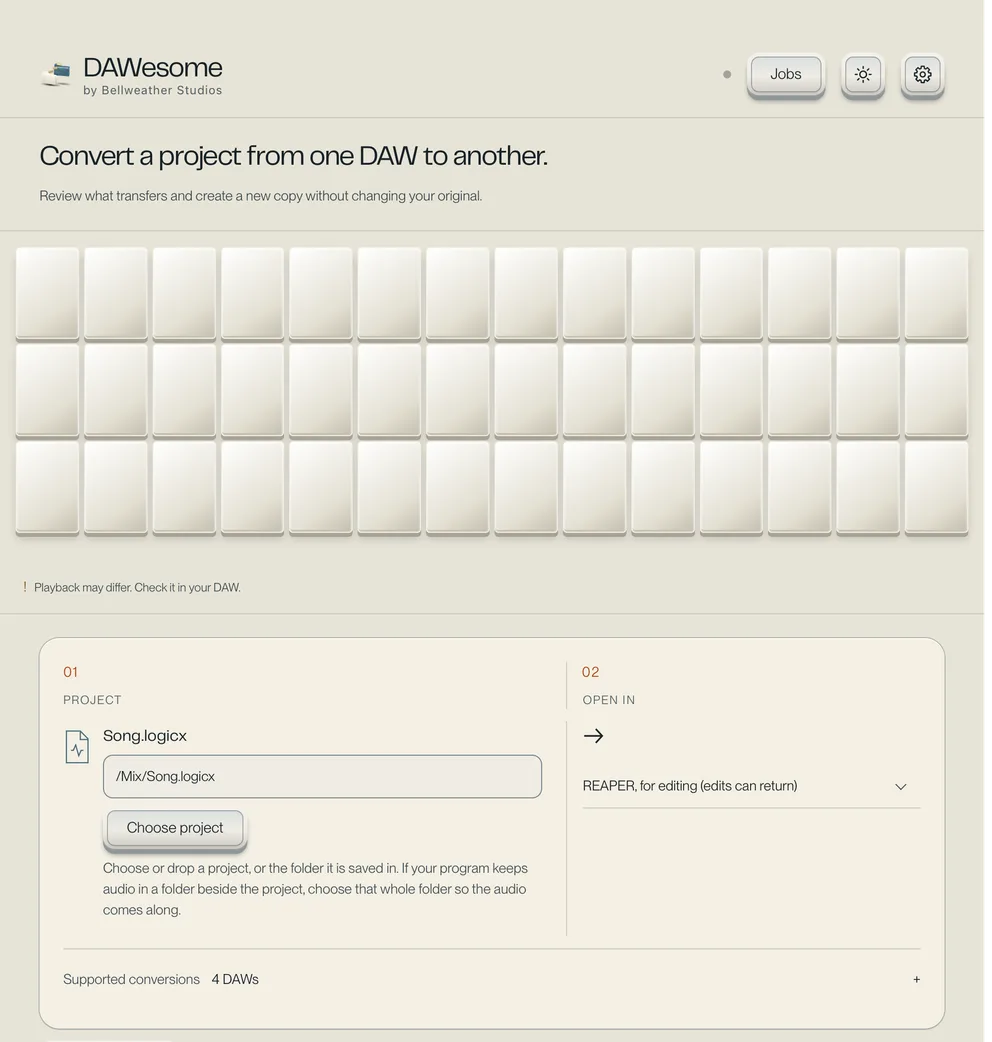
Drop a project, its package, or the folder it is saved in, or click Choose project. One project at a time.
If your program keeps audio in a folder beside the project, choose that whole folder so the audio comes with it.
Choosing only a project file without its audio reports the audio as missing. Put the files back where the project expects them, or collect them in Logic first.
Drop several items and DAWesome asks for a single project.
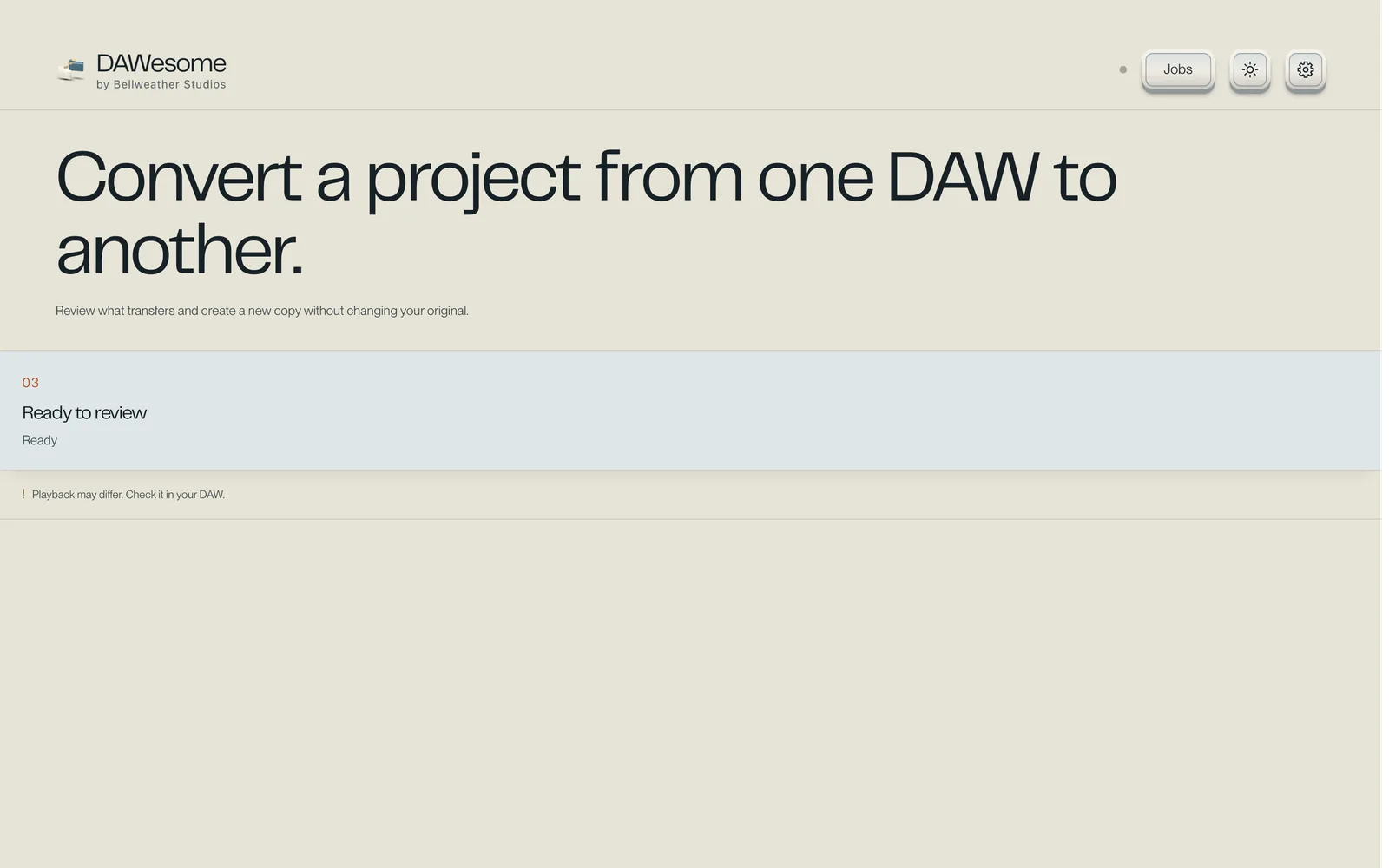
Under Open in, pick the program for the new copy. Only programs that fit your project are offered.
The edition question
For some programs DAWesome asks which edition you will open the copy in, such as Ableton Live Intro or Lite, or Pro Tools Intro. Editions limit how many tracks a project can hold.
Choose the edition you will open the copy in. For some conversions DAWesome stops before writing if your session has more tracks than that edition allows. For others it cannot check, so compare your track count yourself. If you are not sure, it assumes the most limited edition.
Pick an edition bigger than yours and the copy may not fully open.
Review before you convert
Before converting, DAWesome shows what will be carried and what will not.
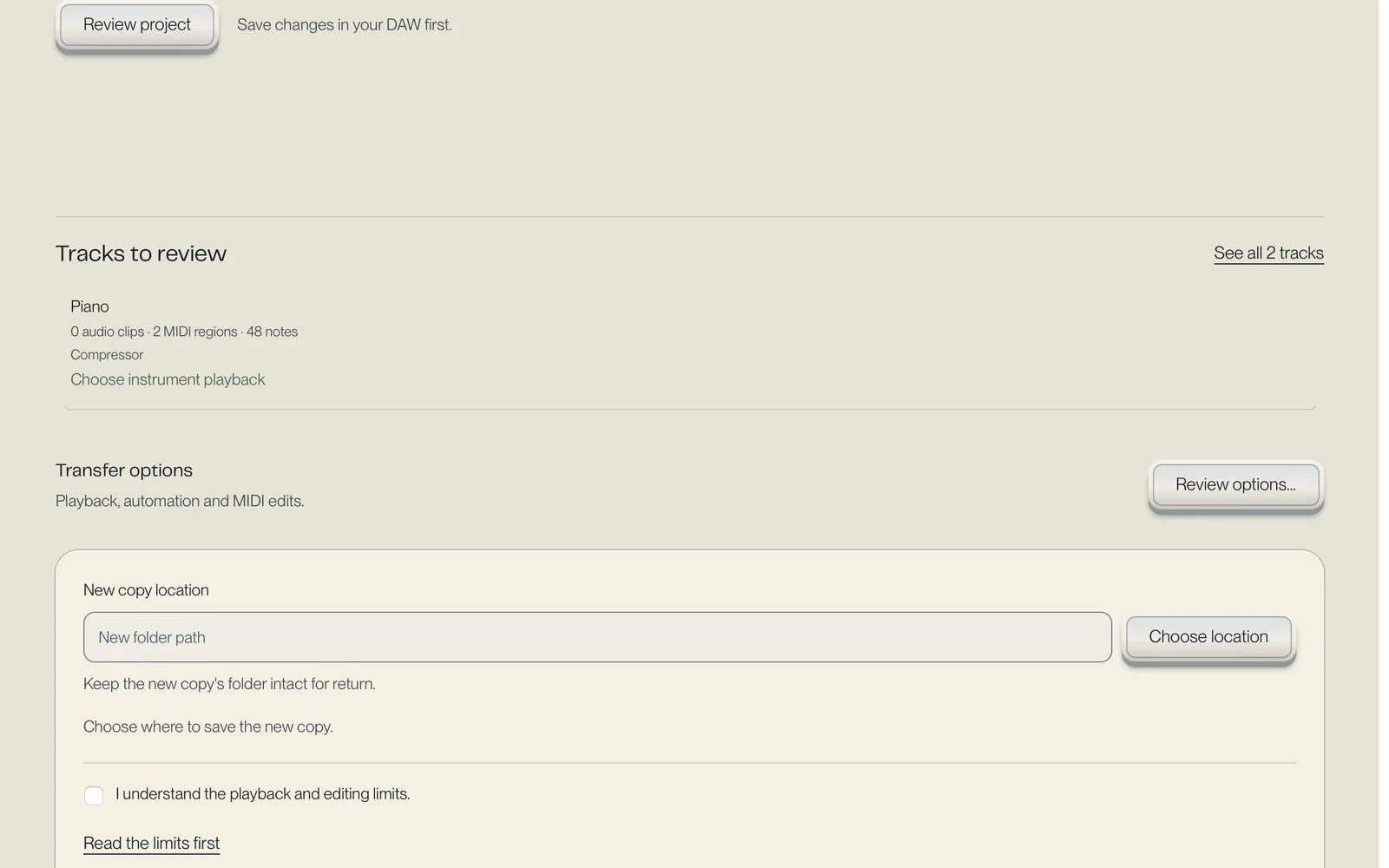
Choose Review options to see your choices.
Convert
Click Choose location and pick an empty folder. It shows under New copy location. Then click Convert project.
With no place chosen, the new copy is saved beside your project. The folder is named after the project and the program, numbered 2, 3 and so on if taken. If DAWesome cannot write there, it saves in your Documents folder and says so.
A place you choose always wins over the default.
The status shows progress. Choose Cancel conversion to stop. A very large session can take minutes.
If a conversion is refused or fails with a message, nothing is kept and your original is not changed. A full drive is refused before any work starts, and the message says how much more room is needed.
The drive that holds the new copy needs room. For REAPER and Live that is about the audio's size plus a few megabytes. For Pro Tools it is one new audio file per track. For Logic Pro it is a few megabytes. DAWesome refuses before any work if the drive is short. You do not need room twice.
Read the report
The report's first line says your original is unchanged. Short lists below say what was kept exactly, what was kept approximately and what was not carried over.
Each list shows up to three items, then "and N more". Choose See everything in the report for all of them.
The result shows the path first, then that your original is unchanged, then the report.
Open project opens the new copy in the destination program. Show in folder finds it. Copy the path copies it. Return edits appears when it applies. Dismiss closes the result; the job stays under Jobs & recovery.
Where your audio goes
REAPER: The audio files are copied into the new copy unchanged and checked against the originals.
Ableton Live: The audio is copied into the set's own Samples/Imported folder next to the .als file, each file numbered and keeping its original name. Compressed AIFF audio is refused; export it as WAV or AIFF and convert again.
Pro Tools: You get a notes session and one WAV file per audio track in a folder named Audio to import, with a Read me first file. Stereo pairs, fades, clip gain and tempo changes are already in those files.
Logic Pro: Logic Pro copies hold notes only. Audio is not written.
Open the copy in your program
Each program opens its copy differently. The steps, by program:
REAPER: Open REAPER and choose File, then Open project. Pick the new project file.
Ableton Live: Choose File, then Open Live Set. Pick the .als file inside the new folder DAWesome made, named after your project and Ableton Live, not the Samples folder. Live opens it in Arrangement View. Session View is empty on purpose. If Live asks for a missing file, the audio is in Samples/Imported beside the .als; point Live at that folder.
Pro Tools: Open the new session in Pro Tools. Choose File, then Import, then Audio, and pick the folder named Audio to import beside it. If Pro Tools warns that the hardware device is at a different sample rate, press OK. To avoid it, match the new session's rate to your audio device.
Logic Pro: Choose File, then Open in Logic Pro and pick the new project.
What to redo by hand
In Arrangement View, drag the square at a clip's top corner to add a fade. The top-left corner is the fade in and the top-right corner is the fade out.
Select the clip, open Clip View and turn Warp on; set the clip's tempo.
Choose Convert to REAPER, keep plugins. DAWesome then writes your Audio Unit effects by other makers into the REAPER copy. They keep their order, their on or off state and their saved settings. Instruments and built-in Logic effects are not carried, and the report counts them before anything is written. This copy is one-way. From REAPER to Ableton Live, VST3 effects by other makers are placed on the same tracks. They keep their order and their on or off state but lose their saved settings, so set them again in Live. Audio Units, instruments and built-in effects are not carried. For anything else, add the plugin in the new program and set it again. A program's own plugins exist only inside that program.
Volume and pan moves from Logic Pro are carried to REAPER and Live, and volume, pan and mute moves from REAPER are carried to Live. In Live they are drawn as straight lines between points. Everything else is not carried yet, and the report says how many lists were left out. Redraw it in the destination program.
Flex time-stretching
DAWesome does not carry Flex time-stretching. If your project uses it, conversion stops before it starts, says so and leaves your project unchanged.
Choose Convert anyway, without time-stretching to continue. The audio converts unstretched, so it plays at its original timing and may drift from the beat. The report says how many regions are affected.
To keep the timing instead, make a copy of the project in Logic Pro, bounce the Flex region to audio, then convert the copy.
Only Flex offers this choice.
Video steps
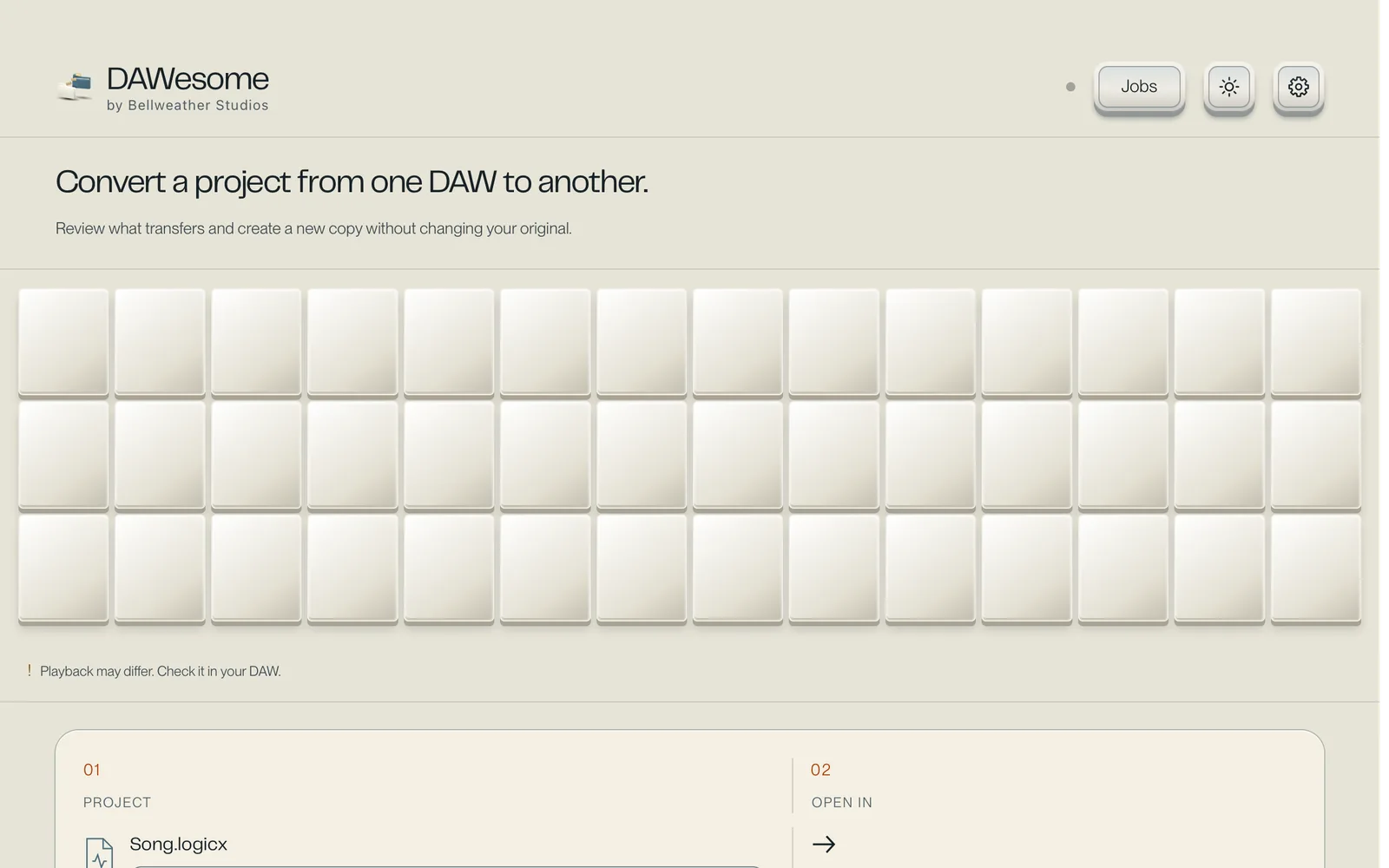
- This clip uses a sample project whose audio uses Flex time-stretching.
- Choose the project and the program you want, then choose Review.
- DAWesome stops before it writes anything and says your project is not changed.
- It offers Convert anyway, without time-stretching. The audio then plays at its original timing and may not line up with the beat.
- Choose Convert anyway, without time-stretching.
- The review now goes ahead and you can convert as usual.
Pro Tools copies: import the audio
A Pro Tools copy holds the notes session. Its audio is in the folder named Audio to import beside it.
Open the session in Pro Tools, choose File > Import > Audio and pick that folder. Muted audio is left out, so unmute what you want before converting.
Muted regions and tracks
Notes in regions you switched off in Logic Pro are kept. They go on an extra track named after the original, ending in (muted), and that track stays muted.
The report says how many regions are muted in your session and that they are kept.
If a conversion is interrupted
Nothing appears at the new place until the finished copy is checked and moved in as one step. If DAWesome stops or a drive is removed mid-write, the place stays empty. A hidden unfinished folder may remain beside it; remove it in Jobs & recovery. Your original is never touched.
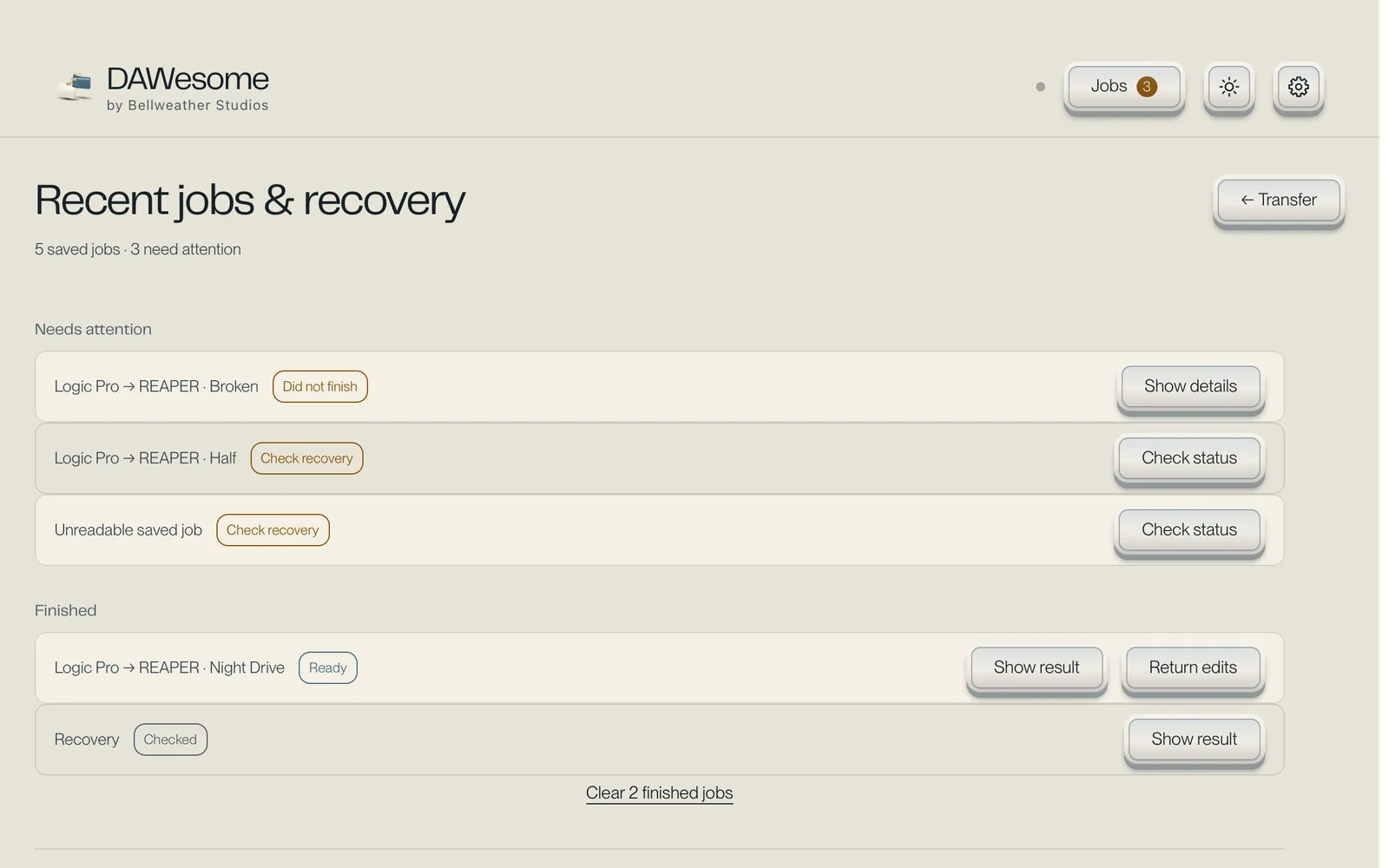
To recover, open DAWesome and choose Jobs & recovery. Recoverable jobs are listed on the Recent jobs & recovery screen: choose Recover conversion. Keep any unfinished folder beside your new copy until you have recovered.
When you see The new project could not be written there, nothing is kept. The drive may be full or read-only, the name may be too long, or a folder with that name may already be there.
Jobs & recovery
This screen lists jobs that need attention and jobs that finished. Clear finished jobs removes finished jobs with nothing left to recover. Output folders are never touched.
Return edits
Return edits makes a new copy of your original project with the simple edits you made in a converted copy. Your original is not changed. It is offered only for some conversions.
Only whole moves of a performance, or a change to the pitch of existing notes, can return. Trims, splits, take changes and processing edits are refused, and the advice says so. DAWesome needs the original DAWesome folder.
The support reminder
Now and then DAWesome shows one line: "DAWesome is free. If it has helped, you can support its making. This is optional." Support opens the Support page. Don't ask again ends the reminder for good. Close leaves the count as it is.
It does not appear while a conversion runs.
Report a problem
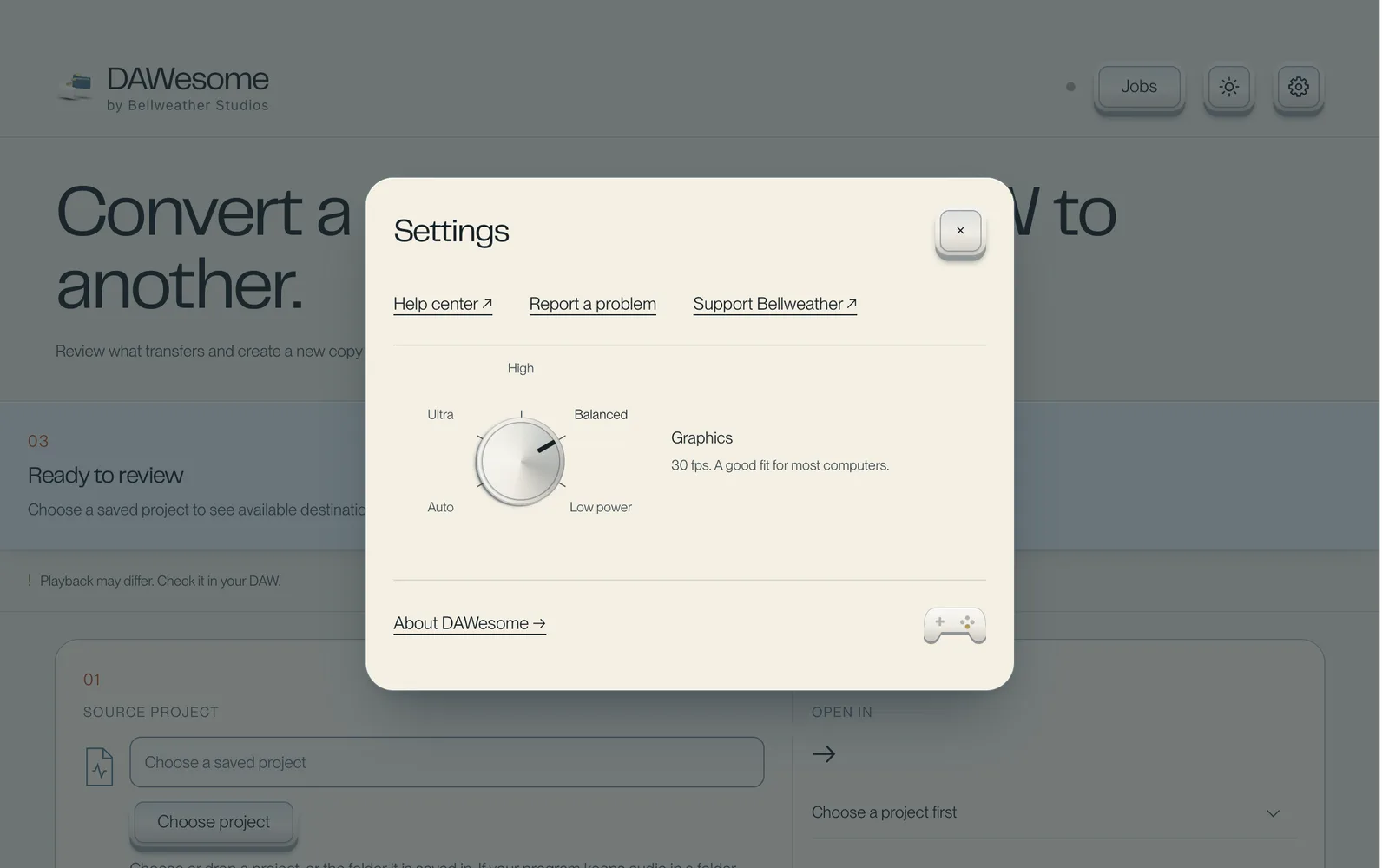
Open Settings and help (the gear) and choose Report a problem. A window shows text with no names, paths or audio. Nothing is sent from there.
Choose Copy report, then Open the Support form and paste it in. Close the window to send nothing.
Remove DAWesome
Drag DAWesome from Applications to the Trash. These stay behind; remove them to clear everything DAWesome keeps:
- ~/Library/Application Support/com.bellweatherstudios.dawesome/
- ~/Library/Logs/com.bellweatherstudios.dawesome/
- ~/Library/WebKit/com.bellweatherstudios.dawesome/
- ~/Library/Caches/com.bellweatherstudios.dawesome/
- ~/Library/Saved Application State/com.bellweatherstudios.dawesome.savedState/
In Finder, choose Go, then Go to Folder, and paste each line. Finish or recover any interrupted conversion first, because removing these folders clears Jobs & recovery.
Watch the walkthrough. The conversion matrix and known limits are on How it works. Short answers are in the FAQ. Still stuck? Open the Support form.