Weather Station
Troubleshooting
Start with the symptom you can see and choose your operating system. The macOS Keychain repair is only for macOS; Windows and Linux use different credential stores.
macOS only
Sign In Does Not Open the Browser
Use this recovery only when Weather Station immediately reports “Secure credential storage is unavailable” and your browser never opens. A confirmed macOS incident involved a stale Keychain access identity, not an Intel processor fault. The message alone does not prove that every occurrence has the same cause.
What this repair changes
- It signs Weather Station out on this Mac.
- It does not remove installed plugins.
- Your account-held licenses return after you sign in again.
- It creates a Desktop backup of the local files you move.
Guided repair - no Terminal required
Quit Weather Station completely
Choose Weather Station > Quit Weather Station. Confirm the dot below its Dock icon disappears.
Remove the old Weather Station Keychain item
Open Keychain Access from Applications > Utilities. Search for
weather-station Safe Storage. Delete only that exact item.Open Weather Station's local folder
In Finder, choose Go > Go to Folder, then enter
~/Library/Application Support/weather-station.Back up the matching credential files
Create a folder on your Desktop named
Weather Station Sign-In Backup. Press Command-Shift-Period to show hidden files, then move.keys,auth.json, andlicense.jsoninto it. Continue if one of those files is not present.Reopen Weather Station and sign in
Weather Station creates a fresh secure identity and opens your browser. Complete sign-in, then return to the app.
Advanced: use Terminal for the local file backup
Complete steps 1 and 2 above first. Then paste this into Terminal instead of using Finder for steps 3 and 4:
profile="$HOME/Library/Application Support/weather-station"
backup="$HOME/Desktop/weather-station-sign-in-backup-$(date +%Y%m%d-%H%M%S)"
mkdir -p "$backup"
for item in .keys auth.json license.json; do
  [ -e "$profile/$item" ] && mv "$profile/$item" "$backup/"
done
Reopen Weather Station and sign in. If the same message returns, stop instead of deleting other Keychain or application data.
Browser Sign-In Does Not Return to Weather Station
This is different from the secure-storage problem because your browser opens and sign-in completes there.
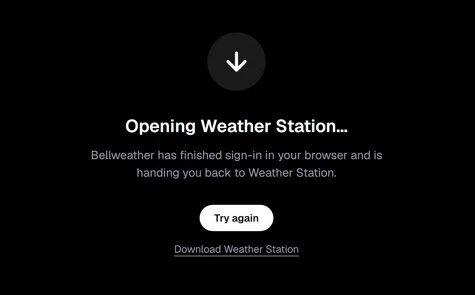
- When your browser asks to open Weather Station, choose Open Weather Station.
- If the prompt does not appear, select Try again on the browser page.
- If Weather Station remains on Signing In, quit the app completely, reopen it, and start one new sign-in attempt.
Do not use the Keychain repair above unless Weather Station shows the secure credential storage message before the browser opens.
Secure Storage on Windows and Linux
Use this section when the app reports secure credential storage is unavailable before opening your browser. This message does not, by itself, identify the underlying cause.
Windows
- Close Weather Station completely and reopen the installed app from your normal Windows account.
- Try Sign In once. If the error remains, record the exact message, app version, and Windows version.
- Contact support. Do not delete Windows credentials, change registry settings, or run the app as another user to work around this error.
Linux
- Launch Weather Station in your normal signed-in desktop session, not as root or from a headless session.
- If your desktop asks to unlock its password store, unlock it using the desktop prompt. Never send that password to support.
- Close and reopen Weather Station, then try Sign In once. If it still fails, contact support with your distribution, desktop environment, and app version.
Expected result: Sign In opens your browser and the completed sign-in returns to the app. If the browser opens but does not return, use the browser-return steps above. Do not delete credential stores or enable plaintext password storage.
Technical context
Windows uses OS-protected credentials through DPAPI. The Linux qualification uses Secret Service; an unavailable secure backend blocks sign-in. Neither uses macOS Keychain. Support needs the failure message, not stored credentials.
Downloads, Updates, and Reinstalling
- Save your DAW project and close the DAW before replacing a plugin. Keep a backup of important projects and custom presets before an update.
- Check the Downloads view for the failed item and its exact message. Check your internet connection and available disk space.
- Confirm that the product is available for your operating system in the installation guide. Weather Station availability does not mean every plugin supports every OS.
- For an installed plugin, open its More options menu in Catalog and choose Reinstall. Try once; if it fails again, save the message and contact support.
- After installation completes, reopen your DAW and rescan if needed. Confirm that the plugin opens before returning to your working session.
Uninstall is not a credential repair or a license deactivation. Avoid deleting application support folders, preset folders, or Keychain items to fix an ordinary download failure. Before removing a plugin used by saved sessions, keep those projects backed up and confirm how you will reinstall the required version with support.
Installed Files Changed or Versions Disagree
If Weather Station says installed files no longer match its record, it stopped the operation to protect an installation it cannot safely reconcile. An external installer or a changed plugin bundle can cause a disagreement, but the warning alone does not identify what changed. Repeating the download may not resolve it.
- Save and close your DAW. Back up important projects and custom presets.
- Keep the exact warning and your Weather Station version. In the plugin details, inspect each detected copy, its format, version, and install location.
- A version unknown or mixed label can mean conflicting versions or unreadable version information. Do not assume that every installed format needs replacing.
- Contact support with those details before removing files. Support can identify the affected copy and confirm the appropriate recovery and reinstall version. Do not delete presets, licensing files, or ownership records to clear the warning.
After the confirmed recovery, refresh Catalog once and verify each installed format before reopening a working project. If the warning returns, stop and send support the new message rather than repeating removal or installation.